How to Build a Personal AI News Feed with NBot and OpenClaw
You check your phone 96 times a day. And yet, most of those moments are spent sifting through content you didn't ask for — curated by algorithms optimizing for engagement, not relevance.
The information you actually need? It's sitting in some tab you forgot to open.The problem is simple: the tools that curate your information aren't the same tools that hold your attention. Your best content lives in one place; your eyes live in another.
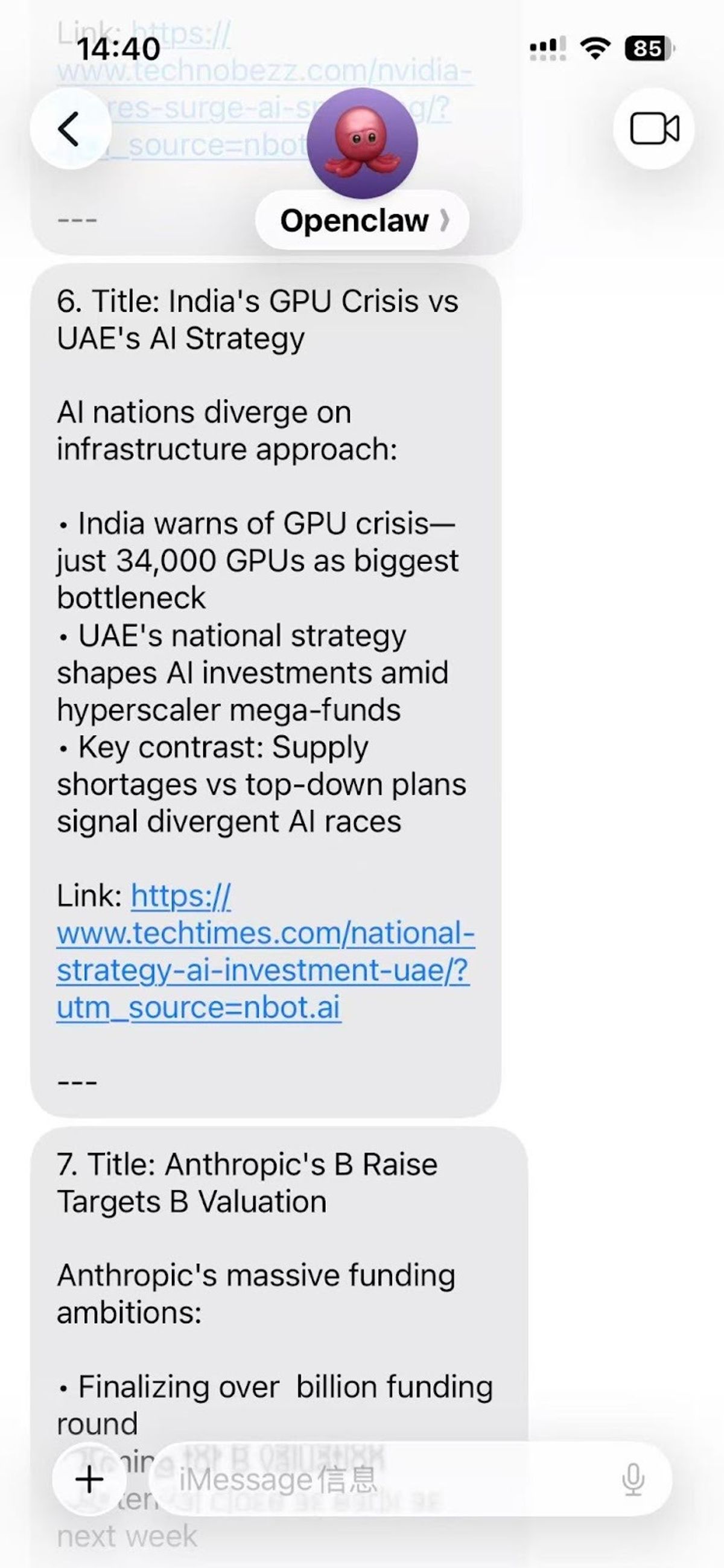
This guide walks through a different approach entirely. By combining Nbot's AI-driven content curation with OpenClaw's local automation engine, you can route filtered, prioritized updates directly into iMessage, Telegram, or Discord — the apps where your attention already resides. Here's what the end result looks like — curated Nbot updates delivered straight to iMessage, no extra apps to check.
The setup takes roughly 30 minutes. After that, the system runs itself.
Why Combine Nbot with OpenClaw
Nbot is excellent at curation — it monitors sources, understands context, and filters noise around the clock.
OpenClaw solves the last-mile problem. It pulls curated content from Nbot's tracker pages, formats it, and delivers it straight to iMessage, Telegram, or Discord — apps you're already checking dozens of times a day. No context switching. No extra tabs.
Together, Nbot provides the intelligence and OpenClaw provides the delivery. One decides what matters; the other makes sure it reaches you.
How the Integration Works
This integration relies on four components working in sequence.
Nbot Tracker monitors your chosen topics around the clock. It scans sources, filters noise, and surfaces what's actually relevant — not through simple keyword matching, but through contextual AI that learns what matters in your domain.
OpenClaw runs locally on your Mac and handles orchestration. It decides when to fetch updates, how to format them, and where to send them.
Chrome Extension gives OpenClaw browser-level access to read NBot's tracker pages and extract structured content.
Your Messaging App — iMessage, Telegram, or Discord — is the delivery endpoint. Updates arrive as native messages, just like any other notification.
The data flow:
Nbot (web tracker) → Chrome Extension (extract) → OpenClaw(format + schedule) → Messaging App (deliver)
Configure it once. It runs on its own from there.
Note: Since OpenClaw runs locally on your Mac, your computer needs to be awake at the scheduled delivery time. If your Mac is asleep or shut down when a delivery is scheduled, the update will be sent the next time your machine wakes up. For the most reliable experience, consider adjusting your Mac's Energy Settings to prevent sleep during your scheduled delivery windows.
Step-by-Step Setup Guide
Prerequisites
Before starting, make sure you have the following ready:
- OpenClaw installed on your Mac . It runs as a lightweight background service accessible through a menu bar icon.
- Chrome browser running a recent version with Manifest V3 support.
- Nbot account — the free tier at nbot.ai is all you need.
- A configured messaging platform — iMessage works natively on Mac; Telegram requires a bot token via BotFather; Discord needs a webhook URL. See OpenClaw's chat channels guide for platform-specific instructions.
With those in place, the actual integration involves four steps.
Step 1: Install the Chrome Extension
OpenClaw needs browser access to read NBot's tracker pages. The Chrome extension provides this.
Follow the Chrome Extension Setup Guide to complete the installation. Once installed, you'll see the OpenClaw icon in your Chrome toolbar — make sure the toggle shows ON (as pictured below).

When you're on an Nbot tracker page, simply open the extension to enable content extraction. That's it.
Step 2: Install the NBot Tracker Skill
OpenClaw extends its capabilities through modular "skills" — small packages that teach the system how to interact with specific services. The NBot Tracker skill enables content extraction and formatting from NBot's web pages.
Download nbot-tracker.skill here. Then move it into OpenClaw's skills directory at ~/.openclaw/skills/. If the directory doesn't exist yet, create it first.
Tip for finding hidden folders: Open Finder, press Cmd + Shift + G, and paste ~/.openclaw/skills/ to navigate directly to the folder.
After placing the file, restart the Gateway to activate the skill. Click the menu bar icon, select "Restart Gateway," and wait roughly 10 seconds. To confirm the installation worked, open the OpenClaw Dashboard and navigate to the Skills page. You should see "nbot-tracker" listed among the active skills.
Step 3: Get Your NBot Tracker URL
Head over to nbot.ai and find a tracker aligned with your interests. The "Explore" section surfaces community-created trackers covering everything from AI research breakthroughs to Web3 governance proposals to SaaS product launches. You can also create a custom tracker tailored to your specific needs.
Once you've found your tracker, click the Share button below it to copy the link. That URL is what you'll feed into OpenClaw in the next step.
Step 4: Configure the Automation
Open the OpenClaw Dashboard by clicking the icon in your menu bar and selecting "Open Dashboard." You'll see a chat-style interface where you can configure automations using plain language — no code, no config files.
In the input field, type something like:
"Track this Nbot tracker [paste your URL] and send updates to my iMessage daily at 8 AM."
You're specifying three things: the source (your Nbot tracker URL), the schedule (daily at 8 AM), and the destination (iMessage). OpenClaw will confirm the schedule and handle everything else — extracting the last 24 hours of content, formatting it into a readable message with titles, summary points, and source links, and dispatching it on time.
Before committing to a schedule, make sure to test first. Tell OpenClaw something like: "Send me updates in 5 minutes." Wait for it to arrive, and check that the content extraction, formatting, and delivery all look right.
Once everything works as expected, set your recurring schedule: "Set daily delivery at 8 AM." From tomorrow on, updates arrive automatically.
Optimizing Your Setup for the Long Run
Getting the automation running is the easy part. Keeping it useful over weeks and months requires a bit more intentionality.
Start Narrow, Then Expand
The temptation to automate everything on day one is strong. Resist it. Begin with a single tracker, one delivery time, and one messaging platform. Live with it for a week. Pay attention to whether the updates feel relevant, whether the volume is manageable, and whether the delivery time fits your routine. Only after you've validated that first workflow should you layer on additional trackers.
Calibrate Your Volume
After a week of receiving updates, take stock. If you're getting overwhelmed, the tracker might be casting too wide a net — or the topic simply generates a high volume of daily content. You have options: choose a more narrowly focused tracker, or add keyword filters to winnow the output. Conversely, if updates feel sparse, consider adding complementary trackers on adjacent topics, or verify that your current tracker has recent activity.
Scale Across Platforms and Schedules
Once your first automation proves its value, scaling is easy. Tell OpenClaw to add another tracker with a different URL, delivery time, or platform.
- Morning (8 AM): Primary industry news → iMessage for personal reading
- Noon (12 PM): Secondary topics → Telegram channel
- Evening (9 PM): Team-relevant updates → Discord for async discussion
Different content, different times, different contexts. Each stream stays manageable because it's scoped and scheduled.
Adjust on the Fly
OpenClaw's conversational interface makes changes easy. A few examples:
- "Change delivery to 9:30 AM" — shift timing
- "Switch to every Monday at 8 AM" — reduce frequency
- "Pause all automations" — take a break
- "Show my active trackers" — check what's running
What You've Built — and Where It Goes from Here
At the end of this process, you have something deceptively simple: a system where relevant information finds you instead of the other way around. No feeds to manually check. No dashboards to remember. No algorithm deciding what deserves your attention.
Nbot does the hard analytical work — monitoring sources, building contextual understanding, filtering noise. OpenClaw completes the loop by delivering those curated insights exactly where your attention already lives, on a schedule you define, in a format you control.
The underlying principle matters more than the specific tooling: your workflow shouldn't bend to accommodate your tools. Your tools should adapt to accommodate your workflow. Platforms like nbot.ai have tackled the genuinely difficult problem of intelligent, persistent content monitoring. OpenClaw bridges the last mile between that intelligence and your daily reality.
Thirty minutes of setup. Zero ongoing maintenance. Information that meets you where you are.
That's the way it should work.
FAQs
Messages aren't arriving?
Check that OpenClaw Gateway is running — look for the icon in your menu bar. If it's there but messages still don't come through, review the Gateway logs for error details.
Can I customize the message format?
Yes. Just tell OpenClaw what you want — for example, "change format to title and link only" or "add emoji indicators for different content types."
Can I use multiple messaging platforms at the same time?
Absolutely. Set the same tracker to deliver to different platforms — iMessage for personal reading, Discord for team visibility. No limits on delivery endpoints.
If you have any other questions, feel free to reach out to us on Discord—we'd love to hear from you.